Vox Manager / Voice typing for Windows
Updated
Vox Manager turns an Android phone into a close-talk microphone for a Windows PC. You speak into the phone, it recognises the words, and a small tray program types them into whatever window has focus: a document, a browser field, a chat, an AI prompt. It is free and open source, the two halves talk over your own Wi-Fi, and there is no account.
Windows already dictates
Win + H, built into Windows 10 and 11, free, works in every application. For a quiet desk and a few sentences a day that is the end of the question.
The catch is distance. Voice typing listens through the system microphone, usually a laptop array or a webcam an arm's length away. At that range you raise your voice without meaning to, and the fan and the keyboard get in alongside you.
| Win + H | Dragon | Vox Manager | |
|---|---|---|---|
| Price | free | paid | free |
| Microphone | system mic, usually an arm's length away | whatever you plug in | your phone, held close |
| Works in any application | yes | yes | yes |
| Custom vocabulary | no | yes | no |
| Voice commands for editing | no | yes | no |
| Source available | no | no | yes |
| Audio leaves the device | yes, to Microsoft | depends on edition | recognition runs on the phone |
The microphone moves
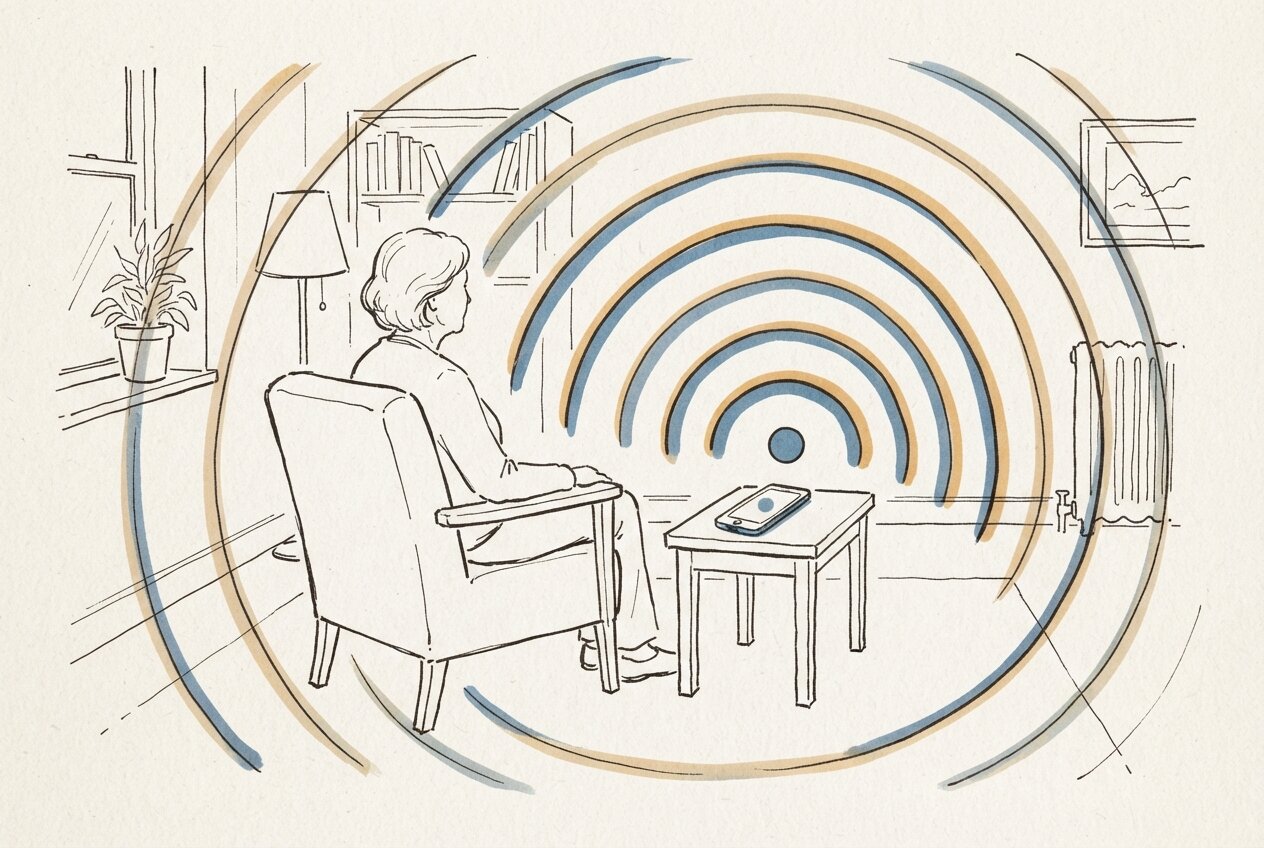
Your phone is a close-talk microphone with noise suppression tuned for a mouth a few centimetres away, and it is already in your hand. It recognises the speech and hands the finished text to a tray program on the PC, which types it at the cursor.
Held close, it hears a whisper. Insertion goes through the Windows SendInput API as literal Unicode instead of the clipboard, so the text arrives as spoken whatever keyboard layout is active, and whatever you copied earlier is still there afterwards. The phone reaches the PC over your own Wi-Fi, with no account and no server of mine in between.
Where the text lands
Anywhere a keyboard works, since Windows cannot tell the difference: Word, Outlook, a browser field, Slack, a terminal, an editor.
Prompts to an AI assistant turned out to be the case I use most. Four sentences of context before the actual question is what separates a useful answer from a vague one, and typing four sentences is enough friction that I used to skip it.
Setup
Two minutes. Server on the PC, app on the phone, then one six-digit code to pair them. The phone finds the computer on the network by itself, so no IP address gets copied anywhere.
What it does not do
No custom vocabulary, no voice commands for editing, no macros; that is what Dragon is for. Recognition is whatever your phone already does, so this improves the microphone and not the recogniser. Windows is the only platform verified end to end: macOS and Linux have build scripts, and Linux additionally needs an X11 session because the input library has no Wayland support.
How the halves trust each other
Pairing exchanges a key with X25519 and HKDF, and the machine secret is sealed with AES-256-GCM, so it never crosses the network in the clear. Afterwards every message is encrypted and signed both ways, with replay protection, which keeps anyone else on the same Wi-Fi from reading what you dictate or typing into your machine. The threat model in the repository also says what it leaves uncovered.
Price
Free, GPL, source on GitHub. A paid tier is planned for AI cleanup and translation, added on top of what already works.
FAQ
What is the best free dictation software for Windows?
The honest answer for most people is the one already installed: press Win + H and speak. Vox Manager is worth adding when the microphone distance is the problem, when you dictate in a language your keyboard layout is not set to, or when you want to read the code that is typing on your machine.
Can I use my phone as a microphone for my PC?
That is what this is. The phone does the listening and the recognition, the PC receives finished text and types it, and the two find each other on your local network without any configuration.
Does my voice go to the cloud?
Recognition happens on the phone through the Android speech service, the same one behind the microphone key on your keyboard, and that service follows its own provider's policy. The recognised text after that goes only to your PC.
Which applications does it work in?
All of them, because the text is typed rather than pasted into a particular program. Word, Outlook, Google Docs, Gmail, Slack, an editor, a terminal: whatever holds the cursor receives it. Insertion uses the Windows SendInput API with literal Unicode, so your clipboard is left alone and the text picks up the formatting of the paragraph it lands in.
Do I need an account?
No. There is nothing to sign up for, no telemetry and no analytics in the app.